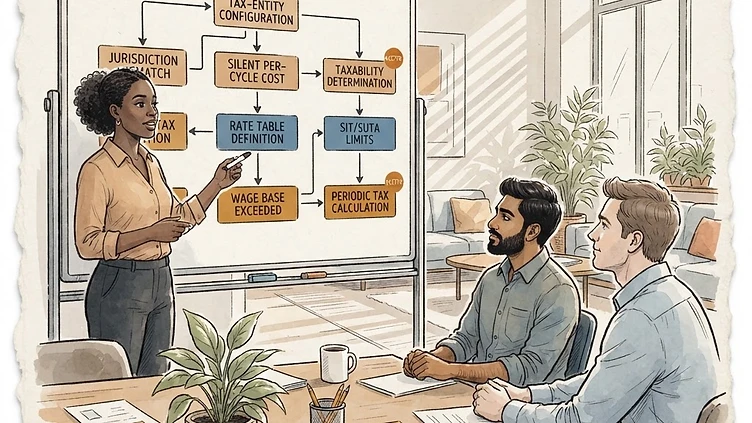
Your Dayforce payroll run finishes without errors. Payroll taxes are filed on time. Then the next cycle comes around and you notice something is wrong — a balance due that should not be there, a rate that does not match your state filings, garnishments that are not calculating correctly. By the time you catch it, you have already paid penalties or over-withheld from employees. Payroll tax configuration errors in Dayforce do not announce themselves. They sit silently through cycles, accumulating exposure, until someone notices the discrepancy. This guide covers the five configuration errors we see most often in mid-market Dayforce environments, where to look for each one, and how to fix them systematically.
Why payroll tax errors are different in Dayforce
Most mid-market HRIS platforms treat payroll tax withholding as a lookup table you configure once and forget. Dayforce is more dynamic — it calculates tax withholding per employee per pay cycle based on how you have configured tax authorities, earning types, pay groups, and employee-level tax profiles. When any one of those configuration layers is wrong, Dayforce computes the wrong withholding and no alert fires unless you have built specific validation checks. The error only surfaces when someone physically reviews the pay statement against what the taxing authority has on file.
The second layer of risk: supplemental wages. Dayforce handles regular wages and supplemental wages (bonuses, overtime, one-time payments) under different withholding rules — and the configuration governing how those rules apply is easy to mis-set, especially when you have multiple pay groups or earn code hierarchies. We see this go wrong most often after annual bonus cycles, when employees receive a large supplemental payment and the company discovers it withheld at the wrong rate.
The 5 most expensive payroll tax configuration errors
1. Multi-state tax jurisdiction setup errors
Mid-market companies with employees working across multiple states face a configuration problem Dayforce does not solve automatically: tax jurisdiction assignment. Dayforce uses the employee's work location to determine which state and local tax authorities apply. If your employees have incorrect work location assignments — or if you have not configured the correct tax authorities for all jurisdictions where employees work — Dayforce withholds based on the wrong state. Employees end up under-withheld or over-withheld, and your company carries the liability for the difference.
Specific failure points we see: employees assigned to a corporate address instead of their actual work location, remote employees whose home state tax authority was never added to Dayforce, and jurisdictions that require city or school district taxes that were never configured. The fix lives in the employee tax profile configuration and the tax authority setup in Dayforce payroll admin.
2. Supplemental wage withholding rate misconfiguration
When an employee receives a bonus, overtime payment, or one-time payment, Dayforce needs to know whether to apply the supplemental flat rate (22% federal for most supplemental wages under the $1M threshold, 37% above it) or the regular withholding rate based on the employee's Form W-4 elections. This is configured at the earning type level and the pay group level, and it is easy for one to be set correctly while the other is not.
The misconfiguration we see most: earning codes for bonuses are set to use supplemental rates, but the pay group the employee belongs to overrides that with a regular rate withholding — or the inverse, where a flat-rate earning is configured to use regular withholding when it should use the supplemental rate. Neither error produces a runtime error. Payroll runs clean. The error only becomes visible when the W-2 does not match what the employee expected or when the IRS matches the withholding against the totals in your quarterly filings.
3. Garnishment deduction calculation errors
Garnishments are one of the most technically complex areas in payroll tax configuration. Dayforce supports multiple garnishment calculation methods — fixed amount, percentage of disposable income, percentage of gross, and tiered percentage schedules — and each requires the correct configuration in both the deduction setup and the garnishment order record. If the calculation method in the deduction does not match what the order specifies, Dayforce withholds the wrong amount every cycle until someone catches it.
Need hands-on help with Dayforce?
Talk to our team →The most common errors: child support orders configured with the wrong percentage method (gross vs. disposable income), student loan garnishments set to a flat amount when the order specifies a percentage of disposable income, and tax levies where the deduction priority is not set above other voluntary deductions — causing Dayforce to satisfy voluntary deductions first and the tax levy second, which violates the priority order required by federal law.
4. Tax code mapping for FLSA overtime and bonuses
FLSA overtime and certain bonus payments are subject to a specific supplemental wage withholding rule: when paid in the same payroll cycle as regular wages, Dayforce can use a "aggregate method" where it adds the supplemental amount to the regular wages for the pay period and withholds as if it were a single payment. This produces a different result than applying the flat 22% supplemental rate to the supplemental amount alone. Which method applies depends on how your earning codes and pay groups are configured.
If you run overtime or bonus payments in a separate cycle from regular wages — which many mid-market companies do — the aggregate method typically does not apply, and the flat supplemental rate applies to the full supplemental amount. The configuration determining which approach applies lives in the pay group settings. Misconfiguring this means the wrong federal withholding rate applies to every overtime or bonus payment you run, every cycle.
5. Employee tax location routing for remote workers
Since 2020, remote work has created a tax configuration problem that Dayforce cannot self-resolve: employees working in states where their employer does not have a physical presence. Many of those states still require income tax withholding — but withholding in those states requires registration with the state tax authority, configuration of the appropriate tax authority in Dayforce, and correct employee work location assignment in the Dayforce employee profile.
The failure pattern: the employee was onboarded with their pre-remote-work address still in their Dayforce profile, so Dayforce withholds based on their old state. The employer never registered to withhold in the employee's new state. No one catches it until the state sends a notice of under-withholding or a penalty notice for failing to withhold. By then, the exposure has compounded across multiple quarters.
How to audit your current Dayforce payroll tax setup
- Pull every employee with an active garnishment and compare the Dayforce configuration against the order language
- Audit earning types marked as supplemental and cross-reference against pay group configurations
- Verify all employees have the correct work location for their actual work state
- Confirm remote employees are set up in the correct state tax authority
- Check pay group settings for supplemental vs. aggregate withholding method
- Verify garnishment deduction priority is set above voluntary deductions
- Run a parallel payroll cycle and compare tax withholding against the prior system
What mid-market companies should take from this
Payroll tax configuration errors are silent, compounding, and expensive. The five errors above are the ones we see most often in mid-market Dayforce environments — and each one can run for months or quarters before anyone notices. If you have not audited your payroll tax configuration in the last 12 months, the highest-leverage action you can take is running through the audit checklist above before your next quarter closes.
Struggling with Dayforce Consulting?
Harmon & Co specializes in Dayforce consulting for mid-market companies. We fix it the first time — no endless ticket queue, no generic advice.