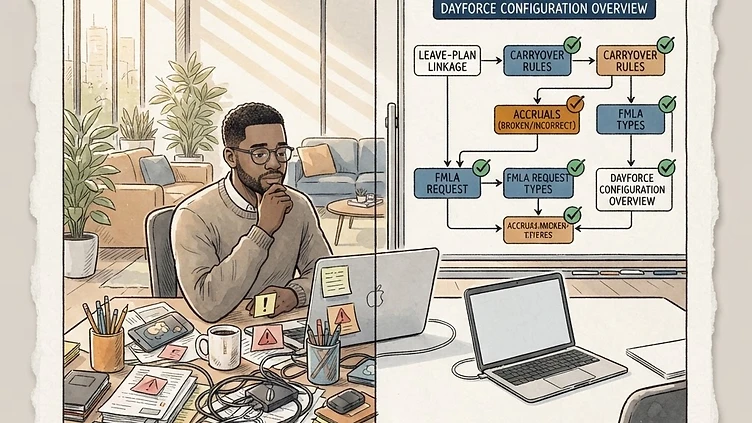
Leave management configuration in Dayforce is one of the most consequential and least validated parts of most mid-market implementations. The errors are invisible until someone tries to use their time off — at which point they're an employee relations problem, a potential compliance issue, or a payroll correction buried in a future cycle. The root cause is almost always the same: Dayforce leave management configuration requires connecting multiple configuration objects (leave plans, accrual policies, request types, workflow routing) correctly, and that connection work is frequently rushed or underdocumented during the build phase. This guide covers every layer of the configuration, the common failure modes, and how to validate the setup before it creates problems.
Understanding the Dayforce leave management architecture
Before configuring anything, you need to understand how Dayforce models leave. Most HR systems treat "leave" as one thing. Dayforce separates it into distinct objects that must be linked correctly:
- Leave Plans — the employee-facing leave type (Vacation, Sick, FMLA, Parental). Defines what leave is called, who's eligible, how it's requested, and what approval workflow it follows.
- Accrual Policies — the rules that govern how leave balances accumulate (rate, frequency, waiting period, cap, carryover). An accrual policy is not a leave plan — it's a separate object that gets linked to one.
- Request Types — the specific employee-facing options within a leave plan (Full Day Off, Half Day, Intermittent, Extended Medical). Each request type has its own configuration rules.
- Work Rules / Pay Policies — how approved leave time flows into pay. If leave-to-pay integration is broken, the time is approved but the pay coding is wrong.
The most common architectural error: treating leave plans and accrual policies as the same thing. They're not. An employee can have multiple leave plans sharing one accrual policy, or a single leave plan with no linked accrual (for non-accruing leave like FMLA or bereavement). Getting the linkage right is the foundation — every problem downstream traces back to a misconfigured connection here.
Leave plan setup: eligibility and plan year configuration
Leave plans in Dayforce are configured under Benefits > Leave Management > Leave Plans. Each plan needs several configuration decisions that directly affect how the system behaves for employees:
Eligibility criteria
Leave plan eligibility is defined by a combination of employment type, pay class, HR policy, and sometimes length-of-service thresholds. The configuration decision that causes the most problems: eligibility groups that are too broad or too narrow.
Too broad: a vacation plan set to "all active employees" includes part-time and temporary workers when your policy doesn't cover them. They accrue balance they're not entitled to, and you're correcting it retroactively. Too narrow: an eligibility filter that excludes a legitimate population (rehires within a certain window, employees who transferred between legal entities) means those employees see no leave plan and can't request time off through Dayforce at all.
Plan year and effective dates
The plan year defines the period over which accruals reset and carryover calculations run. Most companies use a calendar year (January 1 reset) or an anniversary year (reset on hire date anniversary). Dayforce supports both, but the configuration must explicitly match your policy. The failure mode: a plan configured with a calendar year reset and an accrual policy configured with an October effective date produces incorrect carryover calculations at year-end because the two objects' time frames don't align.
Accrual policy configuration: the errors that compound quietly
Accrual policies define how leave balances grow. They're configured in Workforce Management > Time Away from Work > Accrual Policies, and the decisions made here have long-term consequences that don't surface immediately.
Accrual rate tiers and service-length triggers
Need hands-on help with Dayforce?
Talk to our team →Most mid-market leave policies have tenure-based accrual tiers: employees accrue more leave after 3 years, 5 years, etc. In Dayforce, these tiers are configured as separate accrual rules within the policy, each with a length-of-service trigger. The trigger field is calculated against the employee's seniority date — not always their hire date, depending on how your configuration handles rehires and leaves of absence.
If your seniority date logic isn't configured correctly (or isn't populated for all employees), accrual tier promotions won't fire at the right time. An employee who should move to the 5-year accrual tier stays at the 3-year rate indefinitely, with no system alert that anything is wrong. Run an accrual audit against your HR policy at least annually to catch these mismatches.
Balance caps and the "keep accruing after cap" behavior
Dayforce accrual policies have a balance cap field and a separate "continue accruing after cap" toggle. The default behavior is to stop accruing once the cap is reached. This is correct for most policies. But for any policy where the intent is "cap at 240 hours but never lose accrued time" — meaning the employee can exceed the cap if they take time during the accrual period — the configuration requires careful setup of both the cap value and the accrual rule interaction.
Carryover configuration errors are the highest-impact silent failure in leave management. Annual carryover is the most consequential leave configuration decision that's also the least validated before year-end. If your carryover rule is set to "carry all" when policy is "carry up to 40 hours," every employee with a large balance sees an inflated January balance — and correcting it requires manual adjustments across potentially hundreds of records. Audit carryover settings in Q4, not after January 1.
Carryover rules: the four options and when each is right
Dayforce carryover configuration has four modes: carry all unused balance, carry up to a maximum, carry nothing (use-it-or-lose-it), and carry with a payout. The configuration error is almost always a mismatch between what's in the system and what's in the policy document.
Common mismatches in mid-market environments:
- Carry all vs. carry to cap: A company with a "carry up to 40 hours" policy has "carry all" set in Dayforce. Employees with 120 hours at year-end carry 120 hours into January instead of 40.
- Use-it-or-lose-it for one population, carry for another: Companies with multiple employee populations on different leave policies need separate leave plans with separate accrual policies.
- Termination payout not configured: Several states require payout of accrued vacation on termination. If your Dayforce termination configuration doesn't include the vacation payout calculation, you're relying on manual payroll entries.
FMLA and protected leave configuration
FMLA leave in Dayforce is more complex than standard vacation because it's a federally regulated entitlement with specific notice, designation, and tracking requirements — not just a time-off category. The configuration requires decisions that most standard leave setup doesn't address.
The FMLA plan must be configured with the correct leave reason codes (serious health condition, family care, military family leave, qualifying exigency) and the correct eligibility thresholds (12 months of service, 1,250 hours in the past year, 50 employees within 75 miles).
The system does not automatically determine FMLA eligibility — it requires that the HR administrator manually certifies and tracks the eligibility criteria for each employee requesting FMLA leave. If the eligibility tracking configuration is incomplete, employees may be granted FMLA leave they're not entitled to, or denied leave they are entitled to — both of which create compliance risk.
What mid-market companies should take from this
Leave management configuration errors are silent, compounding, and expensive. The failure modes above — misconfigured plan linkage, eligibility errors, accrual tier triggers that don't fire, carryover rules that don't match policy, and FMLA tracking gaps — don't surface until an employee tries to use their time. By then, the correction is a manual process that affects real employees and creates compliance risk. If you haven't validated your leave management configuration against your actual policy documents in the last 12 months, the highest-leverage action you can take is running that validation before year-end — not after.
Struggling with Dayforce Consulting?
Harmon & Co specializes in Dayforce consulting for mid-market companies. We fix it the first time — no endless ticket queue, no generic advice.