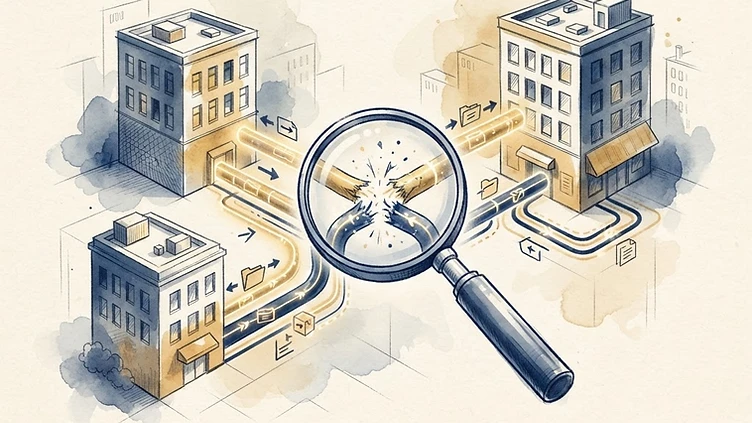
If a Dayforce integration stopped working this morning, you probably found out the hard way — an employee missing from a benefits carrier file, a 401(k) contribution that didn't post, or a general ledger export that didn't reconcile at month-end. Dayforce integration errors rarely announce themselves. They fail silently on a schedule, and by the time someone notices, the bad data has already flowed downstream.
This guide is for HRIS managers, payroll directors, and IT leads at mid-market companies (200–5,000 employees) who are responsible for keeping Dayforce integrations running. It covers the most common Dayforce integration failure modes, how to diagnose them, and — most importantly — how to catch them before they touch employee financial data. We've diagnosed hundreds of failing integrations across SFTP feeds, Integration Studio exports, and API-based connectors, and the failure patterns are remarkably consistent.
Why Dayforce integrations fail silently
Dayforce integrations are designed to run unattended. An SFTP feed fires at 2:00 AM, an Integration Studio export pushes payroll results to your ERP on a schedule, a webhook triggers a background check when a new hire is entered. Nobody watches these runs happen. The system logs success or failure, but if nobody checks the log, a failure can persist for weeks.
The three reasons integrations fail silently:
1. No monitoring. Dayforce records integration run status, but most mid-market teams don't have a process to review it. The integration runs, the log says "failed," and nobody looks until downstream data is wrong.
2. Partial failures. An integration doesn't always fail completely. It processes 2,980 of 3,000 records and skips 20 edge cases — wrong termination dates, missing employee IDs, unmapped pay codes. The file delivers, the receiving system accepts it, and the 20 skipped records surface weeks later as "why is this employee not enrolled?"
3. Drift over time. The integration worked at go-live. Then the vendor changed their file format. Then you added a new pay code. Then an employee record was created with a character the mapping didn't expect. Each change is small; together they break an integration that ran cleanly for two years.
Understanding these three patterns is the foundation of every troubleshooting exercise below.
The most common Dayforce integration errors
SFTP feed failures
SFTP is the most common integration pattern in mid-market Dayforce — file-based transfers to benefits carriers, 401(k) providers, garnishment vendors, and general ledger systems. The failure modes are predictable:
- Authentication failures. Credentials expire, SSH keys rotate, or the vendor changes their server fingerprint. The connection is rejected before any data moves. Check the connection log for "authentication failed" or "permission denied."
- File format drift. The receiving vendor updates their expected file layout — a new column, a renamed field, a different delimiter. Dayforce generates the file in the old format, the vendor rejects it, and the error sits in a queue nobody monitors.
- Empty or zero-record files. If the source query returns no records (a common issue after a pay group is restructured or a filter changes), some vendors reject empty files as errors rather than treating them as "nothing to send this cycle."
- Encoding and special characters. Employee names with accented characters, ampersands in company names, or smart quotes copied from a spreadsheet can break a fixed-width or delimited file parse on the receiving end.
Integration Studio export errors
Integration Studio is Dayforce's tool for building API-based and data-transform integrations. When these fail, the errors are usually one of:
- Mapping errors. A source field no longer exists, or a calculated field references a pay code that was deactivated. The export runs, hits the missing reference, and fails partway through.
- "Path is ambiguous" errors. When a data path in Integration Studio can resolve to multiple fields, Dayforce throws an ambiguity error. This is one of the most-searched Dayforce integration errors, and it almost always traces to a data model change — a new relationship added, a field renamed — that made a previously unambiguous path ambiguous. For a deep dive on this specific error, see our guide on Dayforce Integration Studio "path is ambiguous" errors.
- Transformation logic failures. Custom transformation rules (concatenations, date formatting, conditional logic) break when the underlying data doesn't match the assumed format — a null where a string was expected, a date in one field's format fed into another's.
- Timeouts on large datasets. Exports that worked at 500 employees time out at 2,000 because the query isn't optimized or the batch size wasn't tuned.
API and webhook errors
Webhook-based integrations — background check triggers, applicant tracking syncs, real-time event pushes — fail differently:
Need hands-on help with Dayforce?
Talk to our team →- 401 Unauthorized. The receiving endpoint's API token expired or was rotated. Dayforce retries, exhausts its retry window, and drops the event. This is common enough that we wrote a separate guide on Dayforce webhook 401 unauthorized errors.
- Endpoint not found (404). The receiving system's URL changed, or the webhook was configured against a sandbox URL that was decommissioned after go-live.
- Payload schema mismatch. The receiving system updated its API contract and now rejects payloads Dayforce is still sending in the old format.
- Duplicate or missing events. Retry logic that fires too aggressively can duplicate events; too conservatively, and transient failures drop events entirely.
How to diagnose a failing Dayforce integration
When an integration is broken, work through this sequence — it resolves 80% of issues without escalating to Dayforce support.
Step 1: Check the run log. In Integration Studio, go to the integration's run history. For SFTP, check System Admin > Background Jobs. Look at the exact error message, the timestamp, and how many records processed before the failure. A failure at record 2,980 of 3,000 means a data issue with specific records; a failure at record 0 means a connection or configuration issue.
Step 2: Identify the failure category. Is it a connection issue (auth, network, endpoint), a data issue (a specific record triggers the error), or a mapping/config issue (the integration structure itself is broken)? The category determines the fix.
Step 3: Reproduce with the failing record. If it's a data issue, identify the specific employee or record that failed. Pull that record and run the integration against just that record. The error usually becomes obvious — a missing field, an invalid character, a record that violates a business rule the integration assumed.
Step 4: Check for recent changes. What changed in the last 30 days? New pay codes, restructured org units, a vendor file format update, a credential rotation, a Dayforce release. Integration failures rarely happen without a trigger; finding the change usually points to the fix.
Step 5: Test the fix in a non-production run. Never fix a failing integration directly in production. Run it against a test dataset, confirm the fix resolves the error and doesn't introduce new ones, then promote.
How to stop integrations from failing silently
Troubleshooting fixes the immediate problem. The real win is preventing the next silent failure. Three practices make the difference:
Establish monitoring. Every critical integration should have a review checkpoint — daily for payroll-adjacent feeds, weekly for less critical ones. A five-minute log review catches a failed SFTP feed before it becomes a missed benefits enrollment. If your team can't answer "did all our integrations run successfully last night?" with confidence, you have a monitoring gap.
Build error alerting. Dayforce can notify on integration failures, but the configuration is often skipped during implementation. Set up alerts for every integration that touches employee financial data — benefits, 401(k), garnishments, GL. The alert should go to a monitored inbox, not a no-reply address.
Document the integration inventory. Most mid-market Dayforce environments have integrations nobody fully owns — the SFTP feed a former consultant built, the webhook the implementation partner configured, the export that "just works." When one breaks, nobody knows who to ask or what the expected behavior is. A simple inventory — integration name, direction, schedule, receiving system, owner, and expected record count — turns a mystery into a five-minute diagnosis.
When to bring in a Dayforce consultant
If your team is spending more than a few hours a month firefighting integration issues, or if a critical integration has been failing intermittently for more than two cycles, the root cause is almost always structural — not a one-off error. A Dayforce consultant can audit your integration landscape, fix the ones that are broken, establish monitoring, and harden the ones that are silently degrading.
The cost of an undetected integration failure — a missed benefits enrollment, an incorrect 401(k) contribution, a GL entry that doesn't reconcile — is almost always higher than the cost of the consultant who would have caught it. If that's the situation you're in, we can help. Harmon & Co specializes in Dayforce integration troubleshooting, monitoring setup, and hardening for mid-market companies. Talk to our team about your integration environment.
Struggling with Dayforce Consulting?
Harmon & Co specializes in Dayforce consulting for mid-market companies. We fix it the first time — no endless ticket queue, no generic advice.