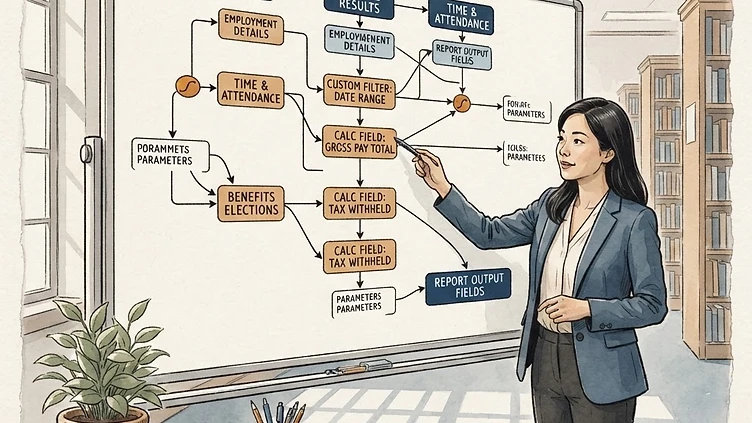
Dayforce's report builder is one of the most capable features in the platform and one of the least used correctly by mid-market teams. Most companies that have been on Dayforce for more than a year are running the same default reports they launched with, not because those reports are what they need but because the Dayforce custom report builder has a learning curve that nobody makes time to climb. This guide covers the fundamentals that unlock real utility from Dayforce reporting: the data object model, parameter filters, calculated fields, and delivery scheduling.

This is focused on the operational reporting that mid-market HR teams actually need — headcount tracking, overtime analysis, turnover reporting, and compliance summaries. It's not a guide to Dayforce Analytics or the OLAP data warehouse layer, which requires a separate discussion and typically a separate licensing conversation.

Understanding the Dayforce report data object model

The first thing that confuses users coming from other HRIS platforms is that Dayforce reports don't work off tables the way a SQL database does. Instead, Dayforce exposes a data object model — a hierarchy of objects (Employee, Employment, Position, Schedule, Pay, etc.) that each contain fields you can add to a report. Understanding this model is what separates HR analysts who can build useful reports from those who spend 40 minutes in the report builder and give up.

The top-level object for most HR reports is Employee. Underneath it, you have Employment (current employment details), Position (the organizational slot the employee is in), Compensation (pay rates and history), and Time & Attendance objects (schedule, clock data, accruals). The relationship between these objects determines what you can pull in a single report and what requires separate reports that you join outside of Dayforce.

The most important thing to know: each report in Dayforce works off a primary data object you choose when you create the report. Once set, you can only join data from objects that have a defined relationship to your primary object. If you pick Employee as your primary object, you can pull Employment and Position data but you cannot pull Payroll Balances — that's a different object hierarchy. This is why the data object selection at report creation is not a trivial choice.

Parameter filters that make reports actually useful

Setting up runtime parameters

A common mistake in Dayforce report building is hardcoding filters — setting the report to always pull a specific date range or a specific department. The better pattern is runtime parameters, which let the report user define the filter criteria when they run the report rather than requiring an administrator to edit the report definition each time.

In the report builder (Dayforce HCM → Reports → Report Builder), after selecting your data objects and fields, go to the Filters tab. Add your filter condition, then check Is Parameter. This flags the filter as a runtime prompt. When the report runs, the user is prompted to enter the date range, department, or other criteria before the report generates.

The most useful runtime parameters for mid-market HR teams:

  • Effective date range — for any report showing historical data or point-in-time snapshots
  • Legal entity / location — for companies with multiple sites or subsidiaries that need location-scoped reports
  • Employment type — full-time vs. part-time vs. variable-hour filtering is useful for headcount and ACA reports
  • Pay group — for payroll-adjacent reports where you need to scope to a specific payroll cycle

Using effective-dating correctly

Dayforce is an effective-dated system — most HR data records have start and end dates, not just a current value. This means that pulling an employee's department or pay rate "as of today" requires a different filter than pulling it "as of December 31." Getting effective-dating right in your reports is the difference between a report that accurately reflects a point in time and one that silently pulls current data and labels it historical.

When building reports that should reflect a specific date, use the Effective Date filter on the Employment or Position object — not just a date filter on the report level. The Effective Date filter tells Dayforce to return the record that was active as of that date, rather than the most recent record regardless of when it became effective.

Calculated fields for metrics you can't pull directly

Need hands-on help with Custom Report Builder Tips Mid?

Talk to our team →

Some of the metrics HR teams need aren't stored fields in Dayforce — they're derived values. Tenure (time since hire date), overtime rate (overtime hours divided by regular hours), turnover rate (terminations divided by average headcount) — none of these are direct Dayforce fields. They require calculated fields.

Dayforce's report builder supports calculated fields via the Calculated Columns section in the report builder. The syntax is closer to spreadsheet formulas than SQL, which makes it approachable for HR analysts who don't write code.

Useful calculated fields for mid-market HR reports:

  • Tenure in years: DATEDIFF(YEAR, [HireDate], TODAY()) — rounds to whole years; adjust YEAR to MONTH for month-level precision
  • Overtime percentage: IIF([TotalOvertimeHours] > 0, [TotalOvertimeHours] / [TotalRegularHours], 0)
  • Annualized salary from hourly: [HourlyRate] * 2080 — useful for cross-format compensation comparisons
  • Days since last review: DATEDIFF(DAY, [LastReviewDate], TODAY()) — for HR business partner workload management

Calculated fields are evaluated at report run time, not stored in the database, so they always reflect current data. This also means complex calculated fields can slow down large reports — keep the calculations simple or apply them in a post-export tool for very large employee populations.

Report grouping, subtotals, and formatting

Dayforce reports support grouping by any field in the report, which transforms a flat list into a structured breakdown. For headcount reports, grouping by Department and then by Location produces a nested view that matches how most HR leaders think about their workforce. For overtime reports, grouping by Pay Group and then by Manager creates the accountability structure for follow-up conversations.

Add subtotals to numeric fields in each group by enabling the Subtotal option on the field in the report layout. Dayforce will automatically generate subtotal rows at each group break and a grand total at the report footer.

A note on formatting: Dayforce report exports to Excel preserve conditional formatting applied in the report builder, but the formatting is often lost or corrupted when the report is opened in Google Sheets. If your team works primarily in Google Sheets, design your reports for clean CSV export and apply formatting in Sheets rather than in Dayforce.

Scheduling report delivery

One of the most underused Dayforce reporting features is report delivery scheduling — configuring a report to run automatically on a defined schedule and deliver to specified recipients via email or to a shared location. This is what turns a useful custom report into an operational tool that runs without manual intervention.

To schedule a report, open the report and go to Schedule Report. Set the frequency (daily, weekly, monthly, custom CRON expression for more precise scheduling), the delivery format (Excel, CSV, PDF), and the recipients. Recipients can be specific users, role-based groups, or an external email address for reports that need to go to people who don't have Dayforce access.

The reports most worth scheduling for mid-market teams:

  • Weekly overtime exception report — managers see their team's overtime by Monday morning without anyone manually pulling it
  • Monthly headcount summary — department-level headcount delivered to business leaders on the first of the month
  • Bi-weekly payroll reconciliation — total gross pay and headcount by pay group before payroll processes, giving payroll administrators a verification checkpoint
  • Quarterly turnover report — terminations by department and reason code, delivered to HR leadership for trend review

Common Dayforce report builder mistakes

A few patterns that consistently produce bad reports:

Not filtering on employment status. By default, Dayforce reports include terminated employees unless you explicitly filter them out. A headcount report without an Active employment status filter will return every person who has ever worked there.

Using the wrong date field. Dayforce distinguishes between hire date, original hire date, rehire date, and adjusted service date. They're often the same value — and when they're not, the difference is significant. Know which date field your report's business logic requires before selecting one.

Building one report that does too many things. A report that tries to show headcount, turnover, and overtime in one output is usually wrong in at least one dimension because the three metrics require different primary data objects and different filtering logic. Build separate reports and combine them in the dashboard view or in a spreadsheet — not in Dayforce.

If your Dayforce reporting environment needs a structured build-out — either because reports were never configured past the defaults or because the current setup isn't producing reliable data — we can scope what's needed. Custom reporting configuration is one of the most consistent gaps we find in post go-live Dayforce environments.

Need help with this?

Struggling with Dayforce Configuration?

Harmon & Co specializes in Dayforce consulting for mid-market companies. We fix it the first time — no endless ticket queue, no generic advice.

Book a Free Consultation See Our Services →