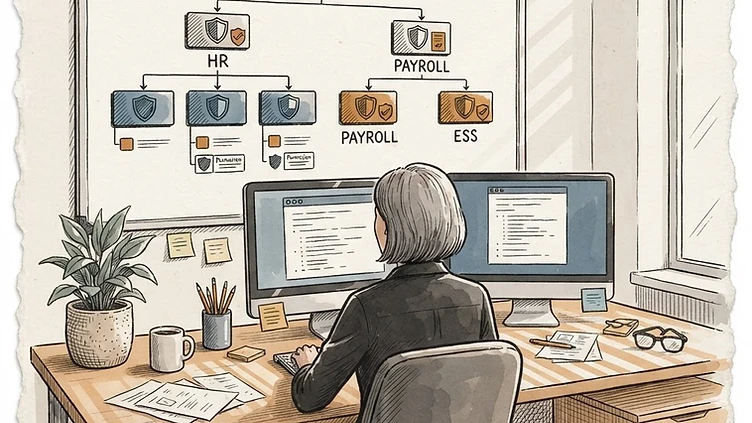
If you're setting up Dayforce security roles for the first time, or inheriting an instance where the role structure was built hastily during implementation, this guide is for you. Dayforce security roles and permissions are the foundation of who can see what, do what, and approve what in your system — and they're also one of the most common sources of post-go-live problems in mid-market environments.
We've audited dozens of mid-market Dayforce instances (200–5,000 employees), and the security configuration issues are remarkably consistent: over-privileged roles, orphaned permissions from terminated employees, no separation between HR and finance access, and role structures that don't match how the business actually operates. This guide covers how Dayforce security roles work, how to design them for a mid-market organization, and the configuration mistakes that create risk and frustration.
How Dayforce security roles work
A Dayforce security role is a collection of permissions that defines what a user can access and do in the system. Roles are assigned to users, and users inherit the permissions of every role assigned to them. The model is role-based, which means you configure permissions once at the role level and then assign roles to people — you don't manage permissions per user.
Three concepts matter most:
User roles. The roles themselves — "HR Administrator," "Payroll Manager," "Location Manager," "Employee." Each role is configured with a set of feature access and authorizations. Roles can be nested (a parent role) and can carry special flags: ESS Role (Employee Self-Service access), Termination Role (limited access for terminated employees), Onboarding Role (pre-start access for new hires).
Feature access. What a role can see and do — which screens, which actions (view, add, edit, delete), which configuration areas. Feature access is granular: a role might be able to view employee records but not edit compensation, or run payroll reports but not process payroll.
Authorizations. Data-level access — which employees, which org units, which pay groups, which locations. A location manager role might have full HR access but only for their location's employees. Authorizations are what prevent a manager in Boston from seeing payroll data for employees in Chicago.
Getting these three layers right is the entire game. Most security problems trace to a mismatch between them — a role with too much feature access, or feature access without the right authorizations to scope it.
Designing roles for a mid-market organization
The most common mistake is over-building roles. Mid-market companies often end up with 25 roles when 8 would do, each with subtly different permissions nobody can explain. Start with a clean role structure and add only when the business genuinely requires it.
A practical mid-market role baseline:
- System Administrator. Full configuration access. One or two people. Should not be a shared account.
- HR Administrator. Full employee data access across all org units, benefits, compensation, reporting. Typically 2–4 people in HR leadership.
- HR Specialist. Employee data access scoped to their org units, no compensation edit, no system configuration. The day-to-day HR team.
- Payroll Manager. Payroll processing, pay data edit, payroll reports, across all pay groups. No HR configuration access.
- Payroll Specialist. Pay data entry and review, scoped to assigned pay groups. No final payroll commit.
- Location/Department Manager. Employee data view for their direct reports and org unit, timecard approval, performance management. The most authorization-heavy role — gets it right or the whole org feels it.
- Employee (ESS). Self-service access — own data, pay statements, benefits enrollment, time off requests. Everyone.
- Terminated Employee. Limited access to historical pay statements and tax forms only. One role per instance.
Eight roles, clear ownership, no overlap. Add a role only when an existing one can't be configured to meet a genuine business need — not because a department "wants their own."
The most common security configuration mistakes
Over-privileged roles
The single most common issue. During implementation, to make go-live deadlines, consultants grant broad permissions and never tighten them. The result: an HR Specialist role that can edit compensation, a Payroll Specialist role that can access benefits configuration, a Location Manager role that can see every employee in the company.
Need hands-on help with Dayforce?
Talk to our team →Audit each role against the principle of least privilege. For every permission, ask: does this role need to do this, or just see it? If the answer is "see it," grant view, not edit. If the answer is "neither," remove it.
Missing authorizations on feature access
A role can have feature access to employee records but no authorizations scoping which employees — which means it sees everyone. This is how a location manager ends up viewing payroll data company-wide. Every role with employee-data feature access needs authorization scoping (by org unit, location, or pay group) or it defaults to all-access.
Check every role's authorizations, not just its feature access. The combination is what determines actual data exposure.
No separation of duties between HR and finance
Compensation and payroll are finance-adjacent functions that HR often configures. In a well-designed instance, the role that sets compensation and pay rates is different from the role that approves or processes payroll — a basic separation of duties that prevents a single person from both entering and approving their own pay changes. Mid-market instances frequently skip this, creating audit and fraud risk.
Orphaned access for terminated employees
When an employee terminates, their user account should move to a termination role with limited access. Too often, terminated employees retain their original role's permissions for months — sometimes because the termination job that reassigns the role was never scheduled, sometimes because the termination role itself was never configured. Audit your terminated-employee user accounts annually; you'll almost always find several with active-role permissions.
Shared or generic user accounts
A "Payroll Team" login shared across four people, or a vendor-provided service account with admin access. Shared accounts make audit trails meaningless — you can't tell who made a change — and they're a security liability. Every user who touches Dayforce should have a named account, and service accounts should have the minimum permissions for their specific function, not admin.
How to audit your Dayforce security configuration
If you've inherited an instance or haven't reviewed security in over a year, run this audit:
- List every role and its user count. Roles with zero users can be deactivated. Roles with one user should be evaluated — is that a legitimate specialized role, or a workaround?
- Review feature access per role. For each role, pull the permission list and validate it against the role's intended function. Flag any role with system configuration access (it should be rare) or compensation/pay edit access (scope it carefully).
- Review authorizations per role. For every role with employee-data access, confirm the authorization scoping is correct and not defaulting to all-access.
- Audit terminated-employee accounts. Pull all users with terminated status and check their assigned role. Any with active-role permissions need remediation.
- Review shared and service accounts. Identify any non-personal accounts, validate their permissions are minimal, and confirm ownership.
- Test with a sample user. Create a test user in each role and log in. What you see is what the role actually grants — which sometimes differs from what the configuration screen suggests.
When to bring in a Dayforce consultant
Security configuration is high-stakes: get it wrong and you have compliance exposure, audit findings, or — worst case — a data privacy incident. But it's also low-frequency work for most mid-market teams, which means internal expertise is often thin. A Dayforce consultant can audit your role structure, remediate over-privileged roles, configure proper authorizations, and establish separation of duties — typically in a focused engagement that costs less than one compliance finding would.
If you're unsure whether your security configuration is sound, or if you're approaching an audit and need a review, we can help. Harmon & Co specializes in Dayforce configuration, security audits, and remediation for mid-market companies. Talk to our team about your security configuration.
Struggling with Dayforce Consulting?
Harmon & Co specializes in Dayforce consulting for mid-market companies. We fix it the first time — no endless ticket queue, no generic advice.