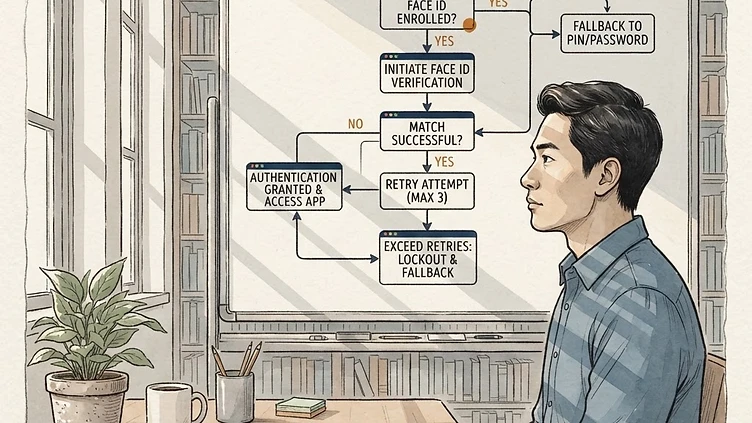
You open the Dayforce mobile app, Face ID scans successfully, and then — nothing. The app flashes briefly and returns to the login screen. Or it shows a spinner for a few seconds before looping back to the Face ID prompt. Face ID appears to work, but you're never actually logged in. The Dayforce mobile app Face ID login loop fix depends on the root cause, which varies between iOS and Android and between SSO and non-SSO configurations. This guide covers all of them.
The Face ID loop is one of the more frustrating Dayforce mobile issues because Face ID itself appears to succeed — your phone unlocks, the scan completes — but authentication fails somewhere downstream. The problem is rarely with Face ID. It's almost always with what happens after the biometric succeeds: the app's attempt to exchange the biometric credential for an active session token.
Common causes of the Dayforce Face ID login loop
1. Stale or expired SSO session token
If your organization uses SSO (Single Sign-On) with Dayforce — common with Azure AD, Okta, or ADFS — Face ID unlocks the app, but the underlying SSO session token may have expired. The app re-authenticates biometrically, retrieves the expired token from the keychain, sends it to the identity provider, gets rejected, and returns to the login screen. The loop is actually the app silently failing to refresh the SSO token and falling back to the login prompt.
The fix: force a full sign-out. In the Dayforce app, look for a Sign Out option on the login screen or in Settings. If the loop prevents you from reaching Settings, force-close the app completely, then reopen it — you should see a standard username/password prompt instead of the Face ID prompt. Sign in with your credentials, re-enable Face ID when prompted, and the fresh session token will be stored correctly.
2. Corrupted biometric credential in the iOS keychain or Android Keystore
On iOS, Dayforce stores the authentication credential that backs Face ID in the device's Secure Enclave via the Keychain. On Android, it uses the Android Keystore. If the app was updated, the device was restored from a backup, or the OS was upgraded while the app was in a particular state, the stored credential can become invalid — but the app still attempts to use it. The biometric succeeds (your face is recognized by the OS), but the credential retrieved from the Keychain is rejected server-side.
The fix is to clear the stored credential and re-enroll:
On iOS:
-
Go to Settings → Dayforce → Reset Local Data if the option is available within the app settings.
-
If that option isn't available, go to your iPhone's Settings → General → iPhone Storage → Dayforce → Offload App. This removes the app but preserves its data. Then reinstall from the App Store.
-
If the loop continues after reinstall, go to Settings → General → iPhone Storage → Dayforce → Delete App (full delete, removes keychain entries), then reinstall fresh.
On Android:
-
Go to Settings → Apps → Dayforce → Storage → Clear Cache first.
-
If clearing cache doesn't resolve it, try Clear Data (this resets the app to a fresh state — you'll need to sign in again).
-
If the issue persists after clearing data, uninstall and reinstall the app from the Play Store.
Need hands-on help with Dayforce?
Talk to our team →3. Dayforce session timeout configuration
Dayforce HCM administrators can configure session timeout settings for mobile apps. If the session timeout is set very low (some organizations set it to 15–30 minutes for security compliance), and you're opening the app after the session has expired, the app may attempt a biometric re-authentication but the server-side session is already gone. The app loops because it's successfully re-authenticating locally but has no valid server session to restore.
This is a configuration issue, not an individual device problem. If multiple employees are experiencing the loop simultaneously — especially if it happens consistently after a certain idle period — check with your Dayforce administrator about the mobile session timeout settings in Dayforce HCM → System Configuration → Mobile Settings.
4. iOS Face ID permissions revoked
After an iOS update or a permissions prompt that the user declined, the Dayforce app may lose the Face ID permission without clearly notifying the user. The app attempts Face ID, iOS shows the Face ID prompt (which appears to succeed at the OS level), but the app never receives the confirmation because the permission was revoked.
Check: Settings → Face ID & Passcode → scroll to "Other Apps" and verify that Dayforce is listed and enabled. If it's not listed or is toggled off, enable it, reopen Dayforce, and re-enroll Face ID when prompted.
5. App version incompatibility after a Dayforce HCM update
Dayforce releases mobile app updates alongside HCM platform updates. If your organization's Dayforce HCM tenant was updated but employees haven't updated their mobile apps, or vice versa, there can be an authentication handshake mismatch that surfaces as a login loop. This is particularly common in the weeks following a major Dayforce release.
Check the App Store or Google Play for a pending Dayforce update. If there's an update available, install it before troubleshooting further. If your HCM tenant is on a version that's ahead of the published mobile app, this may require waiting for the mobile app release to catch up — or asking your Dayforce contact about the release timeline.
IT admin checklist: diagnosing organization-wide Face ID loops
If employees across your organization are hitting the loop, it's almost certainly not a device-level problem. Check these in order:
-
SSO configuration: Verify that your identity provider's Dayforce integration is returning valid tokens and that the token lifetime settings align with your mobile session timeout configuration.
-
Dayforce HCM version vs. mobile app version: Confirm both are on the current compatible release.
-
Mobile session timeout settings: Review the timeout duration in Dayforce HCM and consider whether it's creating a condition where tokens expire before the app has a chance to refresh them.
-
Recent certificate or SSO configuration changes: Any change to SSL certificates, SAML metadata, or OIDC client configuration on the identity provider side can invalidate stored mobile tokens immediately.
When to escalate
Struggling with Dayforce Consulting?
Harmon & Co specializes in Dayforce consulting for mid-market companies. We fix it the first time — no endless ticket queue, no generic advice.