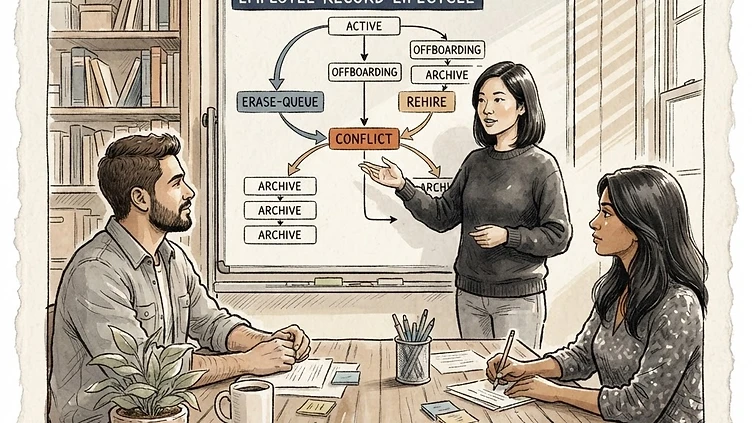
It looks like a Dayforce bug. An employee was added to the erase queue — maybe for a GDPR cleanup, a termination, or a data hygiene project — but before the deletion processed, someone rehired them or manually updated their status. Now Dayforce shows the employee as active, but the erase flag is still queued. The profile is frozen. Payroll won't run on it. Nobody can explain what happened.
This is one of the most confusing edge cases in Dayforce administration, and it's almost entirely a timing problem. Here's what's actually going on and how to fix it.
What the conflict actually is
Dayforce has an erase queue — a background process that processes deletion requests for employee records. This queue exists to handle GDPR right-to-erasure requests, mass data cleanup initiatives, and standard termination workflows where records are removed on a scheduled basis.
When an employee is added to the erase queue, a deletion flag is set on their profile. This flag sits in a processing queue and executes on Dayforce's schedule — not immediately, and not always predictably. If someone reopens that employee's record, changes their status to active, or processes a rehire before the erase job runs, you end up with a profile that has two conflicting states: an active employment status and a pending deletion flag.
Dayforce doesn't reconcile these states automatically. The result is a profile that appears usable but is functionally locked: the employee won't appear correctly in payroll runs, self-service access may be broken, and any attempt to update core employment data throws a validation error.
Why this happens
The root cause is almost always a gap between two separate workflows that don't communicate with each other.
First: the erase queue typically runs on a batch schedule — nightly, weekly, or on an admin-defined cycle. If your HR team doesn't know when the queue processes, it's easy to make a manual update to a record that's already been queued for deletion.
Second: rehire workflows in Dayforce often don't check for pending deletion flags. A manager submits a rehire request through the standard onboarding flow, the employee record is reactivated, and nobody realizes the deletion flag is still active in the queue until payroll runs — or doesn't.
Third: during GDPR compliance projects, it's common for HR teams to add large groups of former employees to the erase queue without cross-referencing against the rehire pipeline. A record that should have been excluded because the employee was in discussions for a return gets caught in the batch.
The conflict is a process gap, not a Dayforce defect. Dayforce is doing exactly what it was told: processing a deletion request and reactivating a profile. The problem is that two teams — or two workflows — gave it conflicting instructions.
How to fix it
Step 1: Identify the conflict
Before you can fix anything, confirm you're dealing with an erase queue conflict. The symptoms are:
- The employee appears active in the directory or employment records
- Payroll run fails or skips this employee with no clear error
- Attempting to edit the employment record returns a validation error or silently fails
- The employee's self-service portal is inaccessible or shows stale data
If you're seeing these symptoms on a recently rehired or reactivated employee, check the employee record in Dayforce's Admin module. Look for any indication of a pending deletion — this may show as a flag, a status of "Erase Scheduled," or a record in the data management audit log.
Step 2: Remove the employee from the erase queue
This is the critical step, and it's where most admins get stuck. The erase queue is not a standard Dayforce module — it's a background process. Accessing it depends on your Dayforce version and your role permissions.
In most cases, the removal path is:
- Go to Admin > System Administration > Data Management (or the equivalent in your version)
- Look for a "Pending Erasures" or "Erase Queue" section
- Locate the employee record and remove it from the queue
- Save the change — the deletion flag should clear within the next processing cycle
If you don't have access to this section, you'll need to contact your Dayforce system administrator or raise a ticket with Ceridian support. This is a data-level intervention that requires elevated permissions.
Step 3: Verify the deletion flag is cleared
After removing from the queue, confirm the flag is cleared before attempting any further updates. Go back to the employee record and check:
- The employment status reflects the correct active state
- No erase-related flags appear in the record metadata
- The employee appears in your current payroll run
If the flag persists after removal from the queue, the queue may have already processed it. See the edge cases section below.
Step 4: Correct the employment record
Once the deletion flag is cleared, update the employment record as needed — correct the hire date if it was reset, restore the original employee ID if it was reassigned, and verify the pay group and tax jurisdiction assignments are accurate. Run a test payroll calculation before processing the next live payroll run.
How to prevent it from happening again
This conflict is preventable with two changes to your Dayforce operations process.
First, create a rehire check protocol. Before any rehiring manager or HR generalist processes a rehire in Dayforce, they should verify the candidate isn't in a pending deletion state. This is a simple checkbox in the Admin module — takes ten seconds, prevents hours of cleanup.
Second, coordinate your data cleanup projects with the HR operations calendar. When you're running a GDPR erasure project or purging old termination records, cross-reference the list against your active rehire pipeline. Any employee who might return — even speculatively — should be excluded from the batch erase and handled manually.
Third, understand your erase queue schedule. Know when the queue processes in your environment. If you're making manual changes to employee records, do it outside the processing window to avoid conflicts.
Edge cases: partial deletion and data recovery
What if the erase queue already processed before you caught it? You have two scenarios:
Partial deletion: The employee's core employment record was deleted but some peripheral data (benefits elections, time-off balances, historical payroll) remains. In this case, you'll need to determine whether the employee has a new record or whether the original record needs to be restored from a backup. Contact Ceridian support — partial deletions often require data recovery from Dayforce's audit trail, which only support can access.
Complete deletion: The employee record is gone. If you have a recent backup or export from your integration layer (benefits carriers, payroll provider), you may be able to reconstruct the record manually. This is labor-intensive but sometimes the only option. Document everything you reconstruct — payroll history, benefits elections, tax elections — because Dayforce won't have it anymore.
When to call in a consultant vs. DIY
If the conflict affected one or two employees and you're comfortable navigating the Admin module, you can resolve this yourself using the steps above. The fix is straightforward once the queue removal path is identified.
If the conflict affected a batch — dozens of employees were queued during a cleanup project and several were simultaneously rehired — you have a data integrity issue that goes beyond one profile. A structured audit of your erase queue, rehire workflows, and data cleanup process will prevent recurrence. That's where a focused Dayforce consulting engagement pays for itself.
The other case for professional help: if you can't access the erase queue section in your Admin module and Ceridian support response time is slow. A Dayforce consultant with elevated system access can clear the queue directly and audit the records.
Book a free consultation with our team.
No pitch, no pressure. We'll review your situation and tell you honestly what it would take to fix it.
Book a Free Consultation